Identity Providers
Configuration for Administrators
Accessing Settings
- Go to: Settings > General > Authentication.
- You can view currently registered identity providers.
- Click "New Provider" to add a new one.
Available Providers
Currently, the system supports the following providers:
- Microsoft - For integration with Azure AD/Entra ID.
- Google - For integration with Google Workspace or personal accounts.
Configuring a Provider
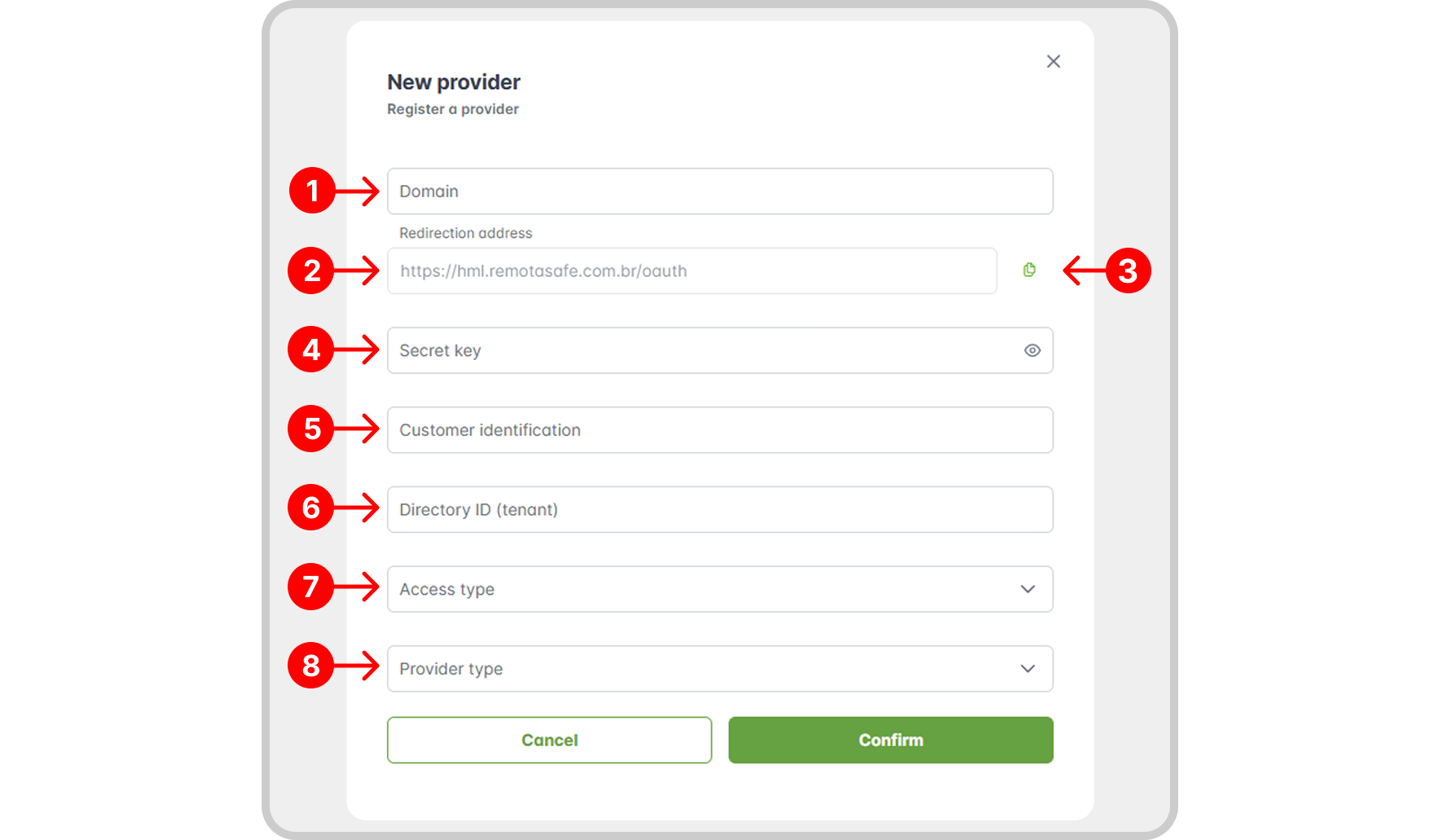
To create a provider, click the New Provider button.
Registration Properties
- Domain: Base address of the provider's authentication service.
Domain Suggestions
- Google: https://accounts.google.com/o/oauth2/v2/auth
- Microsoft: https://login.microsoftonline.com/
- Redirect URI: The URL where the user will be sent after authenticating with the provider. RemotaSafe provides a predefined redirect address.
- Copy redirect address button.
- Client Secret: A secret key that authenticates your application with the provider. This is sensitive information and must be kept secure.
- Client ID: The public identifier for your application at the provider (a GUID for Microsoft or a string ending in .apps.googleusercontent.com for Google).
- Directory ID (Tenant ID): The identifier for your organization (a GUID or domain name for Microsoft; leave blank for Google).
- Access Type: Controls who can use this provider (None: any account; Domain: only specific domains; Default: recommended setting).
- Provider Type: Defines which authentication service will be used (Microsoft for Azure AD/Entra ID or Google for Google accounts).
Getting Credentials
Getting Credentials
- Microsoft Entra ID
- Google Cloud
To obtain Microsoft credentials (Client ID, Client Secret, and Tenant ID):
📖 Official Tutorial: Register an application with Microsoft Entra ID
Information you will need to collect:
- Application (client) ID - Found on the "Overview" page.
- Directory (tenant) ID - Found on the "Overview" page.
- Client Secret - Created under "Certificates & secrets".
Additional Support Links
Important - Microsoft
- The redirect URI comes predefined in the provider settings.

- The client secret is only shown once upon creation.
- Copy and store all information in a safe place.
- Ensure you have administrative permissions in Microsoft Entra.
To obtain Google credentials (Client ID and Client Secret):
📖 Official Tutorial: Setting up OAuth 2.0 - Google Cloud Console
📖 Full Guide: OAuth 2.0 for Web Server Applications
Information you will need to collect:
- Client ID - Obtained after creating OAuth 2.0 credentials.
- Client Secret - Obtained along with the Client ID.
Summary of the Process - Google
- Access the Google Cloud Console.
- Select or create a project.
- Go to APIs & Services > Credentials.
- Create "OAuth 2.0 Client ID" credentials.
- Configure as a "Web Application".
- Add the redirect URI provided by the system.
Important - Google
- The redirect URI comes predefined in the provider settings.
- Maintain your credentials securely and do not share them.
- Ensure you have administrative access to the Google Cloud project.
Once configured, the provider will be available for use by both administrators and users.
For Users
Prerequisites
To use an identity provider:
- The provider must be configured and enabled by the administrator.
- You must have a valid account with the provider (Microsoft or Google).
- Your account must meet any defined access criteria.
How to Link Your Account
Accessing Settings:
- Log in to the system as usual.
- Go to Profile > Preferences.
- Click the "Access" tab.
- Locate the available identity providers.
Linking an Account:
- Click "Link" for the desired provider (Microsoft or Google).
- A new window/tab from the provider will open.
- Log in with your provider credentials.
- Authorize access when prompted.
- The window will close automatically, and the account will be linked.

Linking Status
- After linking, the "Link" button will change to "Unlink", allowing you to disconnect the account if necessary.
- Log in to RemotaSafe again to verify the link is working.
Logging In with a Provider
Once your account is linked, you can use the provider buttons on the login page.
At the Login Screen:
- Click the button for your desired provider.
- You will be automatically redirected to the provider's login page.
- Select your account and enter credentials if prompted.
- Login successful!