Reports
Reports allow you to extract and analyze system data in an organized and customized way. This section details the available report types and how to use them effectively.
Report Types
The system offers four main report categories:
- Locations: Data on device positioning and movement history.
- Emergencies: Records related to device emergency alerts.
- Alerts: Reports on various alerts generated by devices.
- Audit: Information on system activities and user changes.
All reports can be exported in multiple formats for easier analysis and sharing. See the Data Export section for more details.
How to Generate a Report
Step 1: Select Report Type
Choose the category of report you wish to generate:
- Access the Reports section in the top navigation bar.
- Select one of the available categories from the sidebar.
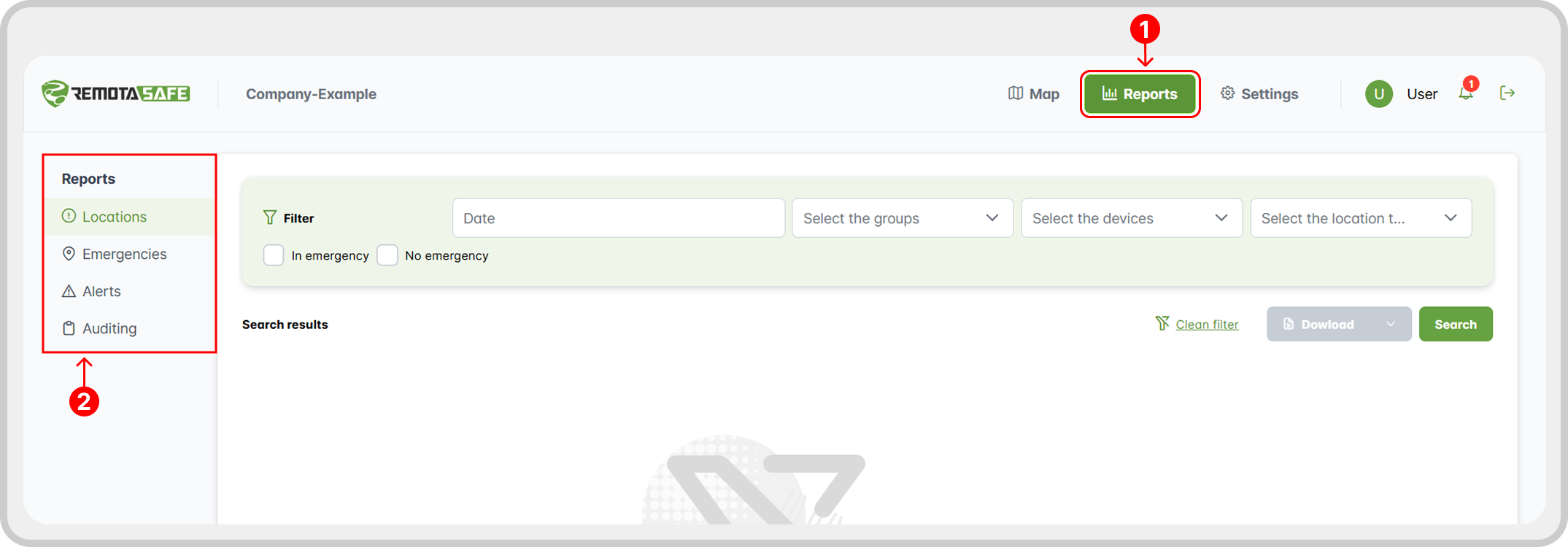
Step 2: Configure Filters
Before generating the report, set the filters to get precisely the data you need. Filtering options vary by context:
Common Filters
| Filter | Description | Applicable to |
|---|---|---|
| Period | Defines the date and time range | All reports |
| Group | Filters by specific device groups | Locations, Emergencies, Alerts |
| Devices | Filters by specific devices | Locations, Emergencies, Alerts |
| Location Type | Defines the tracking method used | Locations |
| In Emergency | Filters for records where devices were in an emergency state | Locations, Alerts |
| Not in Emergency | Filters for records where devices were not in emergency mode | Locations, Alerts |
| Alert Type | Specifies the types of alerts to include | Alerts |
| Context | Defines the operational contexts to audit | Audit |
| Log Type | Filters by the type of logged action | Audit |
| User | Filters for actions taken by specific users | Audit |
Using very broad filters can result in a large volume of data, which may increase processing time.
Step 3: Search
- Apply Filters and Search: Click
Search. - Wait for Processing: The system will gather the data based on your criteria.

Downloading Data
Once a report is generated, you can download the results in various formats to suit your needs for analysis, presentation, or integration.
- Ensure the chosen format is compatible with your tools.
- Very large reports may take longer to process.
- Some formats may not be available for all report types.
Available Formats
| Format | Best for | Characteristics |
|---|---|---|
| CSV | Spreadsheet analysis and system integration | Lightweight, universal, raw data only |
| XLSX | Executive reports and advanced analysis | Supports formatting, formulas, and charts |
| KML | Map visualization (Google Earth/Maps) | Geospatial data with coordinates |
- Need simple analysis? → CSV
- Want formatting and charts? → XLSX
- Working with location data? → KML
How to Export
- After generating the report, locate the arrow next to the Download button (found below the filter area on the right).
- Click your desired format to start the download (CSV, XLSX, or KML).
If you want the default XLSX format, you can click the Download button directly.