Devices
The Map page provides various features related to devices, including direct map interaction, advanced searching, location status, emergencies, and more. Learn more about these tools in the following sections.
All Devices
The "All Devices" section, located within the Devices tab, provides an organized view of all registered and configured devices in RemotaSafe. It also offers map-related features, device details, advanced search filtering, and more.
By default, devices are grouped as configured. Offline devices are shown with a dimmed color.
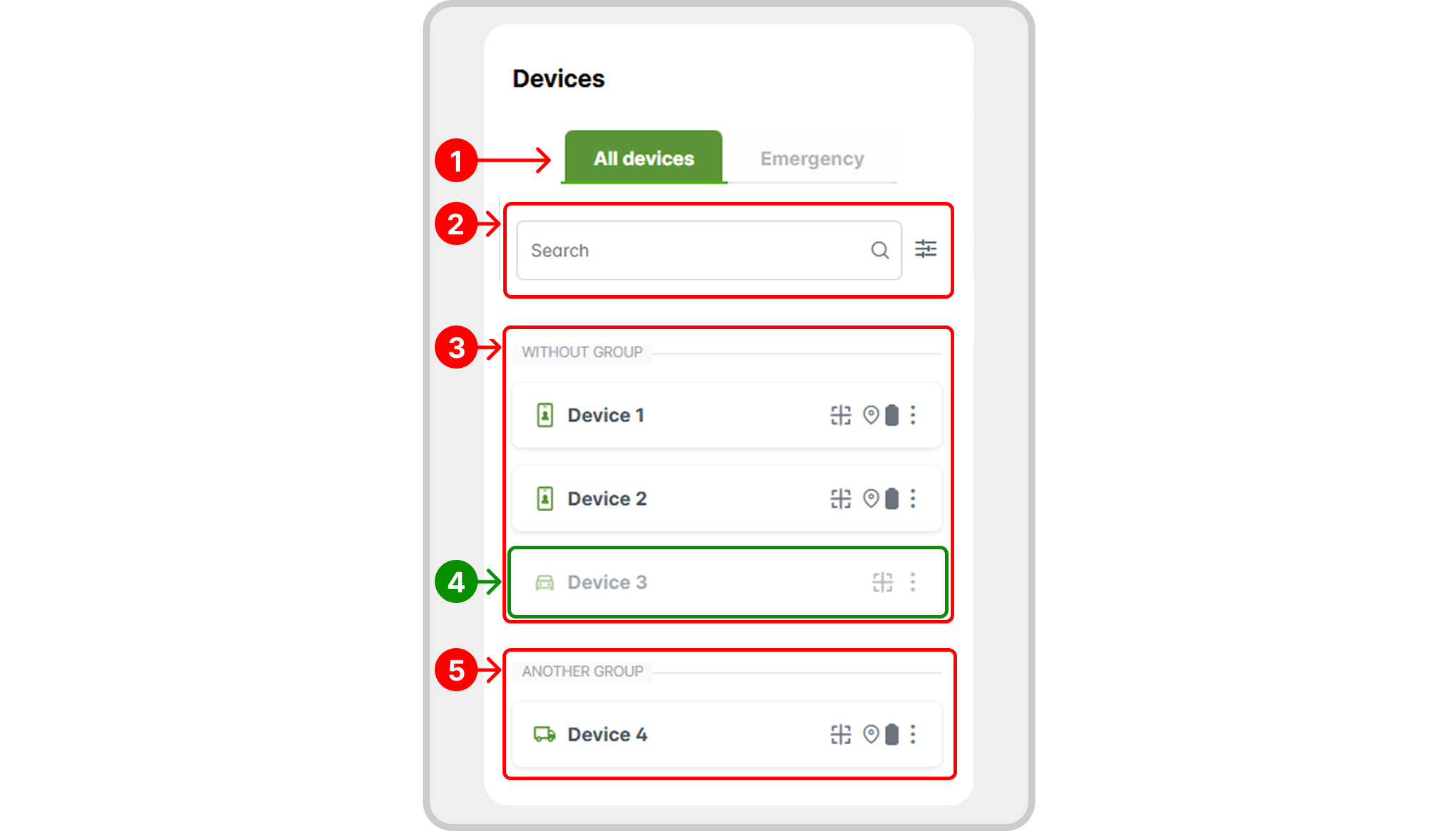
- "All Devices" section.
- Filtering and search.
- Devices not associated with any group.
- Offline device.
- Device associated with a specific group.
Map
On the map, devices are identified by their name and icon, according to their registration in RemotaSafe (1). If two or more devices are very close to each other, a clustering marker (2) is created. Clicking it displays the devices grouped at that location. Select any of them to view their details.
Clicking a specific device displays an information panel with its most recently recorded data (3). You can collapse the detailed map view in the upper right corner of the panel. In the lower right corner, you can access the device's details page, as shown in the figure.
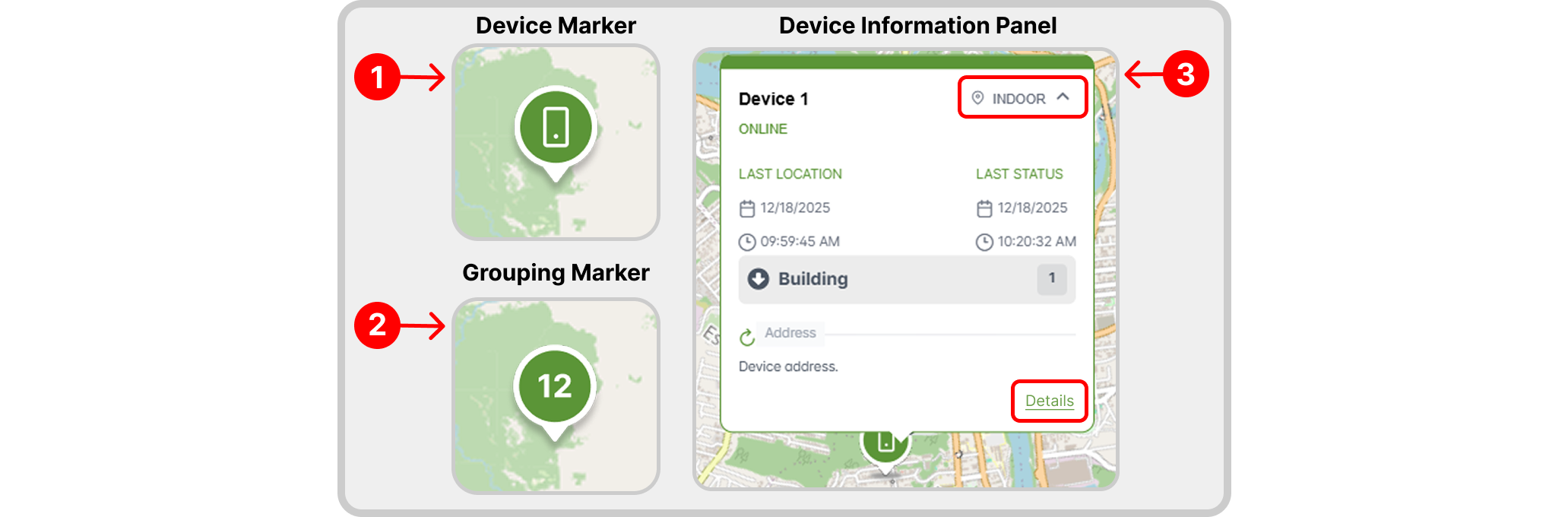
Devices can be viewed in different colors, both on the map and in the side tab:
- Green: device online and receiving GPS signal.
- Yellow: device online, but not receiving signal.
- Red: device in emergency mode.

Emergencies
In the Devices tab, you will also find the "Emergency" section, which displays only devices with an active emergency alert. When a device is in emergency mode, an initial emergency notification appears upon accessing RemotaSafe (1). While emergencies are active, the Emergency section in the Devices tab becomes available (2), along with other indicators like the Top Navigation Bar alert (3).
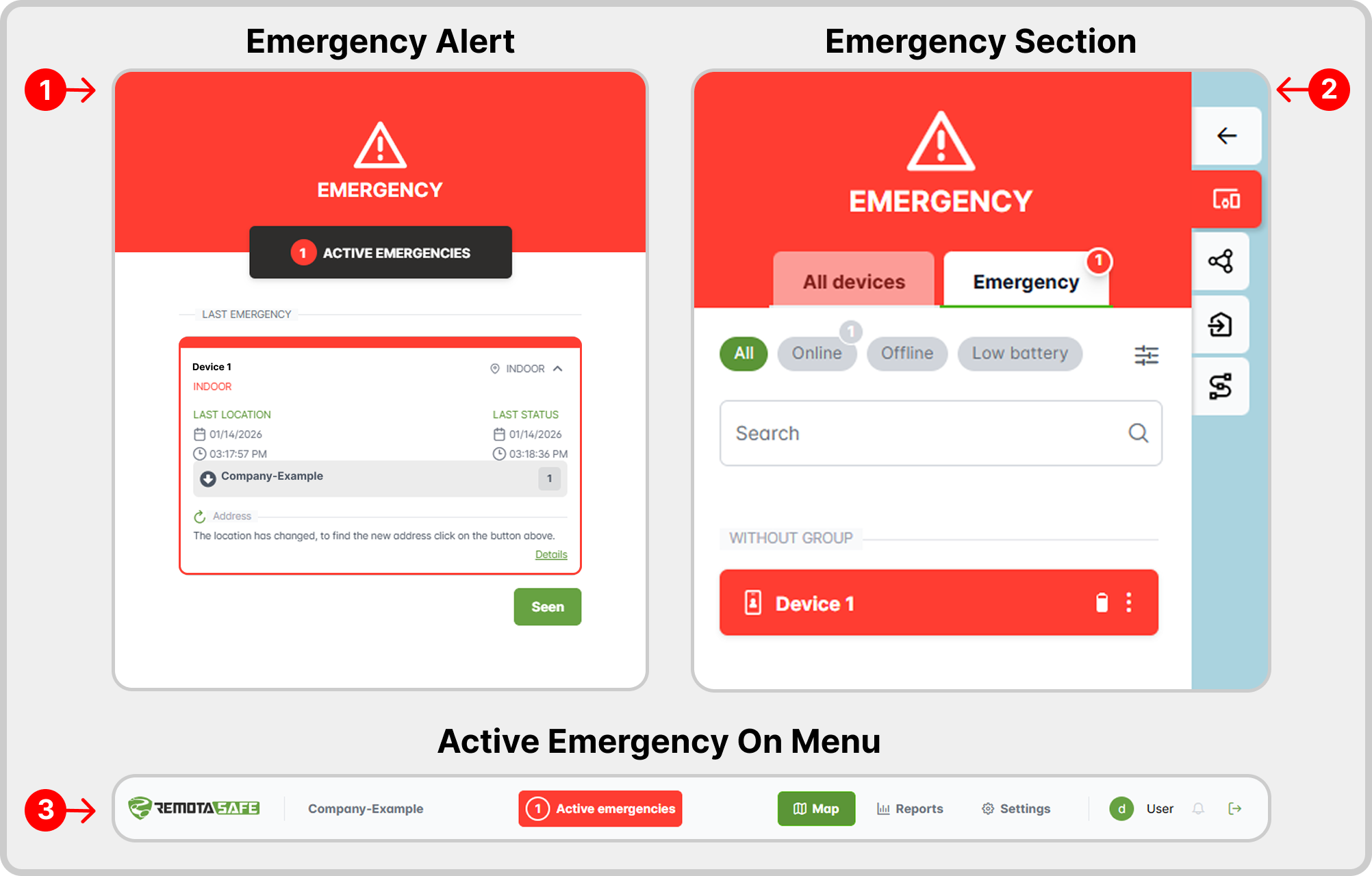
Filtering
To simplify device searches, RemotaSafe offers advanced filtering and name-based search capabilities. For more information, see the Filters section in the Map guide.
Device Features
The records listed in the Devices tab have some features and indicators. Here are some of them:

- Center device on map.
- View location type.
- Battery level indicator.
- Options: access additional device-specific features.
- Indoor device indicator.
Details
Through the details tab, under options, you can view relevant information about the device's registration, location, and status. In addition, you can also view the alert history and important related information.