Indoor System
The Indoor System is a RemotaSafe feature that enables tracking and location management within buildings by creating structures for Buildings, Layers, and Beacons. Access to this system can be managed through Security settings.
Interface
The Indoor System tab displays a structured view of your buildings, layers, and beacons. You can also access features like map centering, detailed information, alert history, and more.
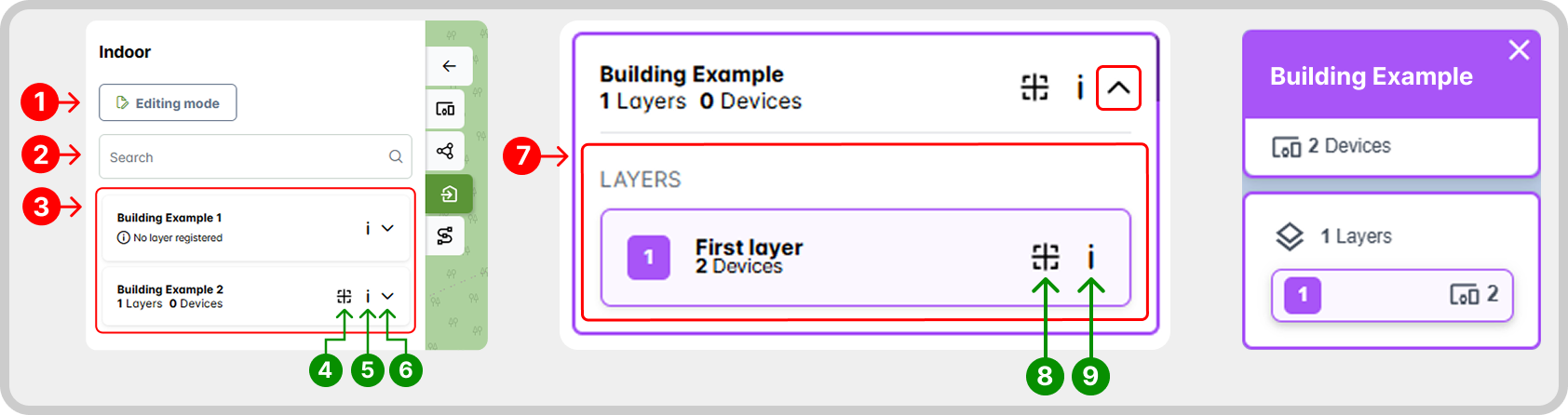
- Edit Mode.
- Search buildings by name.
- List of created buildings.
- Center building on map.
- Building-related information.
- Expand view to see layers.
- Layers.
- Center layer on map.
- Layer-related information.
Edit Mode
Edit Mode reveals the tools for creating, editing, and deleting buildings, layers, and beacons. When you click the "Edit Mode" button, the interface changes based on your security permissions.
Create
Buildings
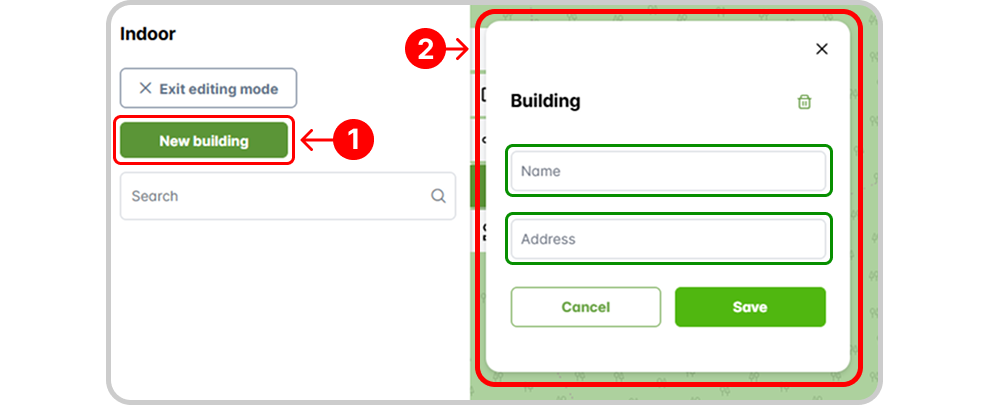
To create a building, click the "New Building" (1) button. A panel (2) will open for you to fill in the required registration fields.
Layers
To create a new layer, expand the layer view for the desired building and click "New Layer". In the registration panel, fill in the required fields and click "Save".
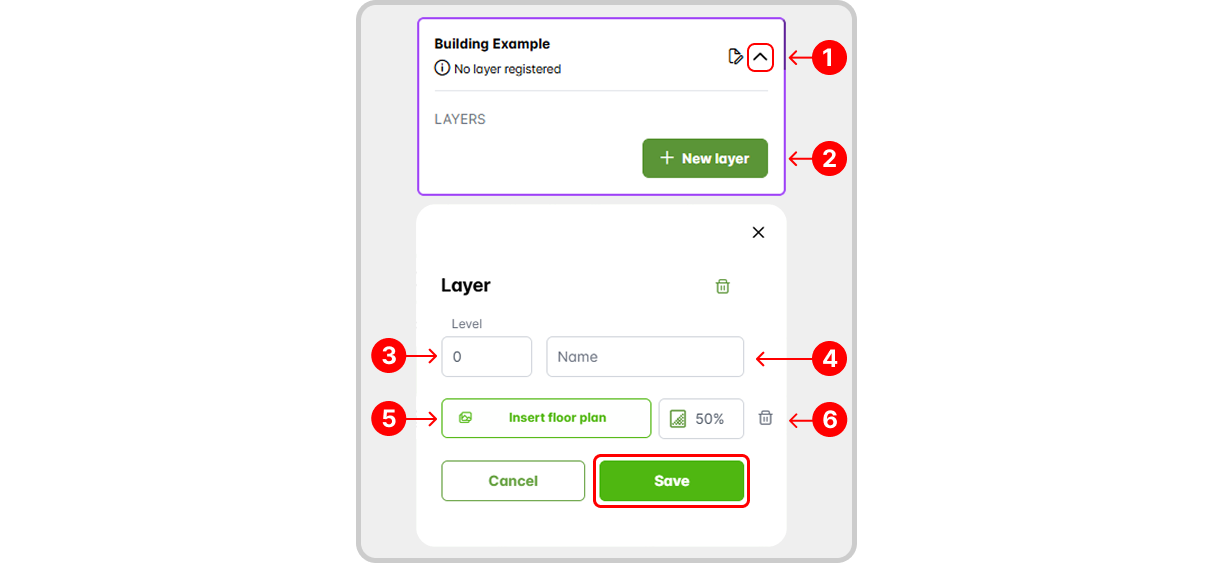
- Expand building's layer view.
- Button to create a new layer.
- Layer level/floor.
- Layer name.
- Floor plan image: Click to upload an image and position it on the map. Beyond a certain zoom level, the base map stops rendering, but the floor plan image remains visible.
- Image opacity level.
Beacons
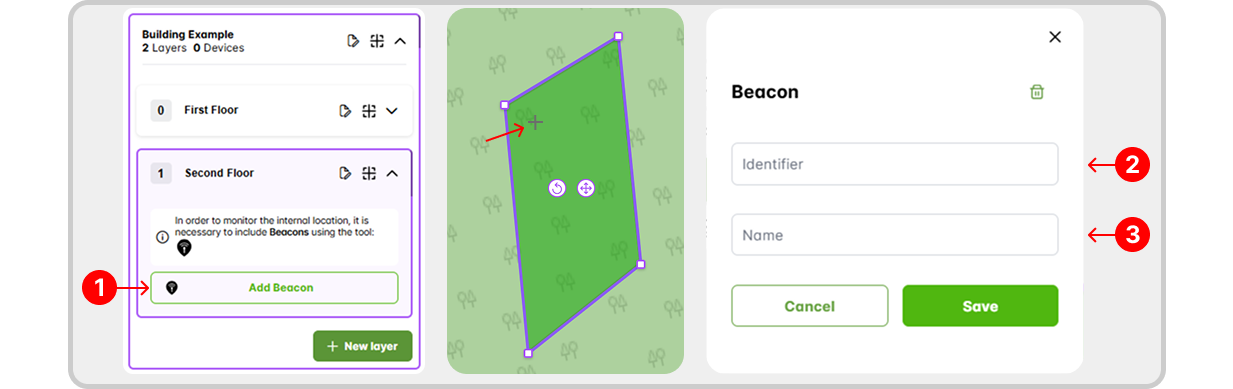
To create a beacon, click the marker icon (1) in the Edit Mode toolbar. Place the marker at a point on the selected layer, enter the configured beacon ID (2) and its name (3), and click "Save".
Edit
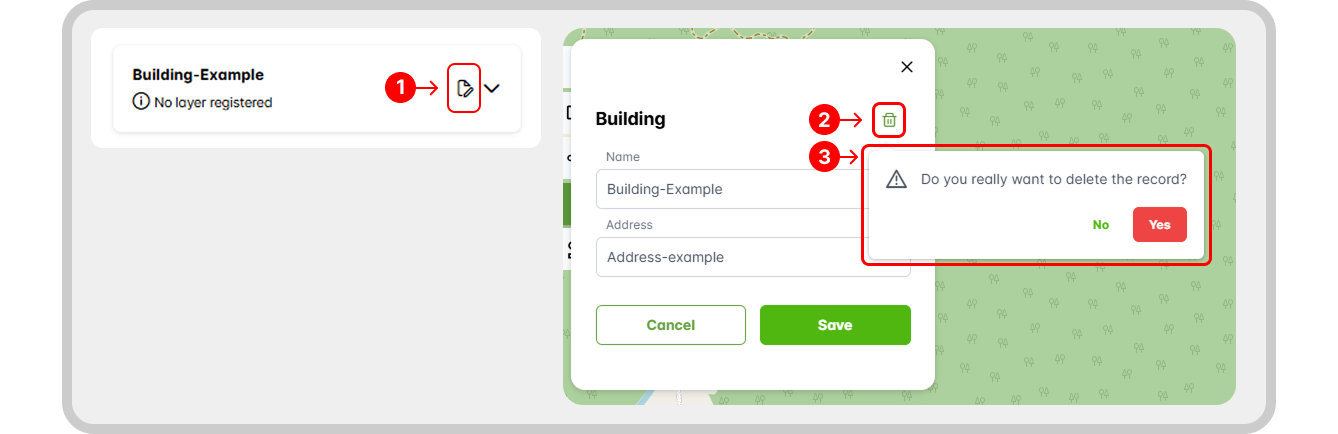
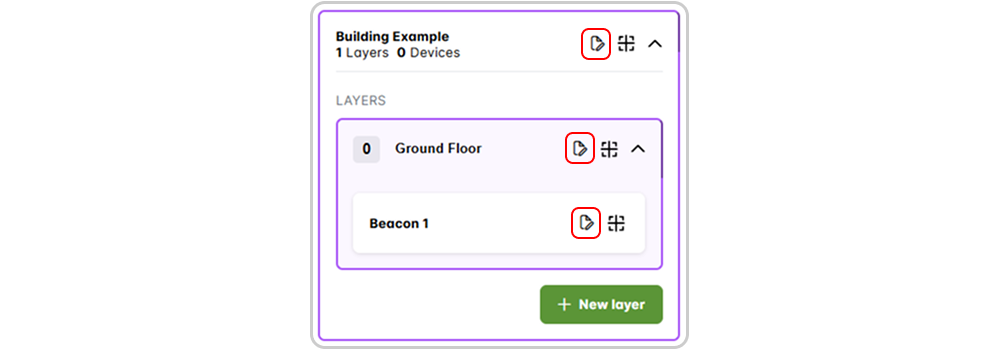
Existing building, layer, or beacon records include an "Edit" button. Clicking it opens the configuration panel where you can modify registration fields. After making changes, click "Save".
Delete
To delete a building, layer, or beacon, click the "Edit" button for the record (1), then click the Trash icon within the panel (2), and confirm the deletion (3). See the following example of building exclusion: