Licensing
The use of Licensing allows for the control of two key parameters for companies: the number of active devices of each type allowed in the system and how many users can access the system simultaneously. It also provides a visual report for better control and management of both proprietary and subsidiary devices.
How to Access?
Access the licensing configuration environment at: Settings > Licensing.
Parent Company License
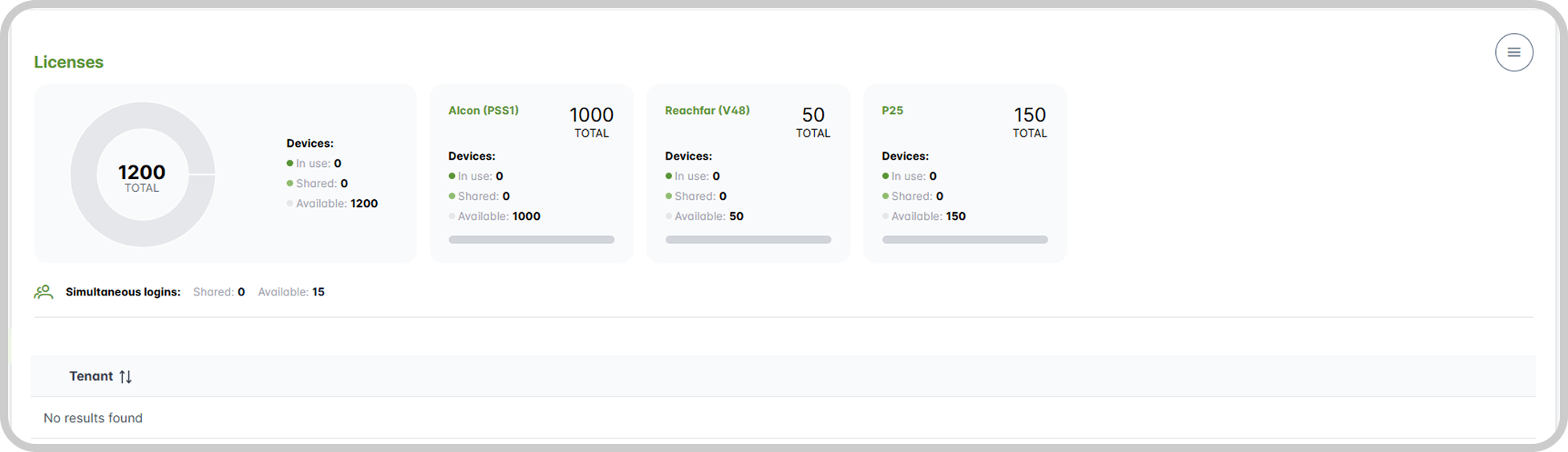
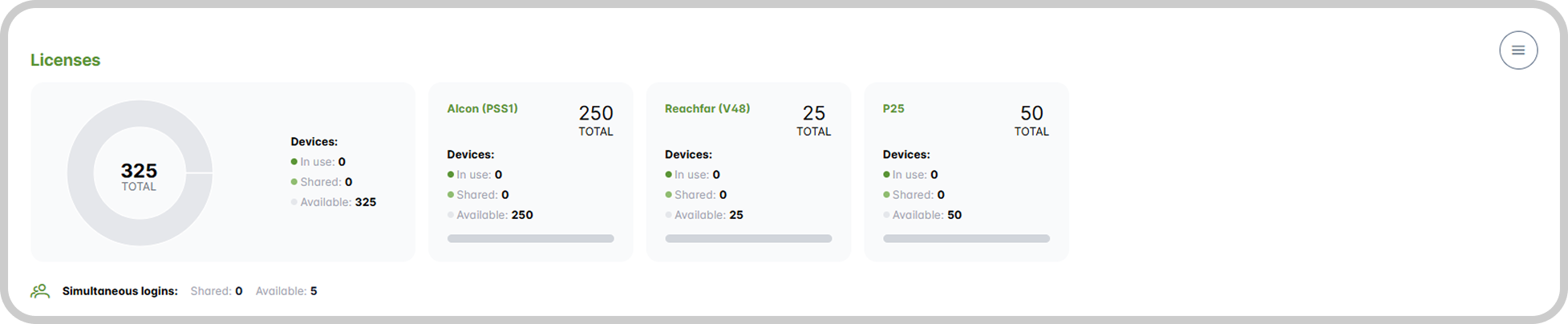
Every company has its own license, which can be modified through the creation of subsidiaries, device activation/deactivation, and more. Below is a representation of a parent company's license before creating any subsidiaries:
Create
License creation and configuration occur during the second stage of registering a new subsidiary company, after filling in its basic registration information.
The subsidiary's license is defined based on the parent company's license, considering the available quantity of each device type and concurrent logins. Resources allocated to the subsidiary can no longer be used by the parent company.
Registration Properties
- Expiration date: If desired, add an expiration date for the license.
- Notes: add any observations related to the created company's license;
- Devices: the number of devices of a specific type that the subsidiary can have (this cannot exceed the amount available to the parent company);
- General: general configurations, such as the maximum number of permitted concurrent logins;
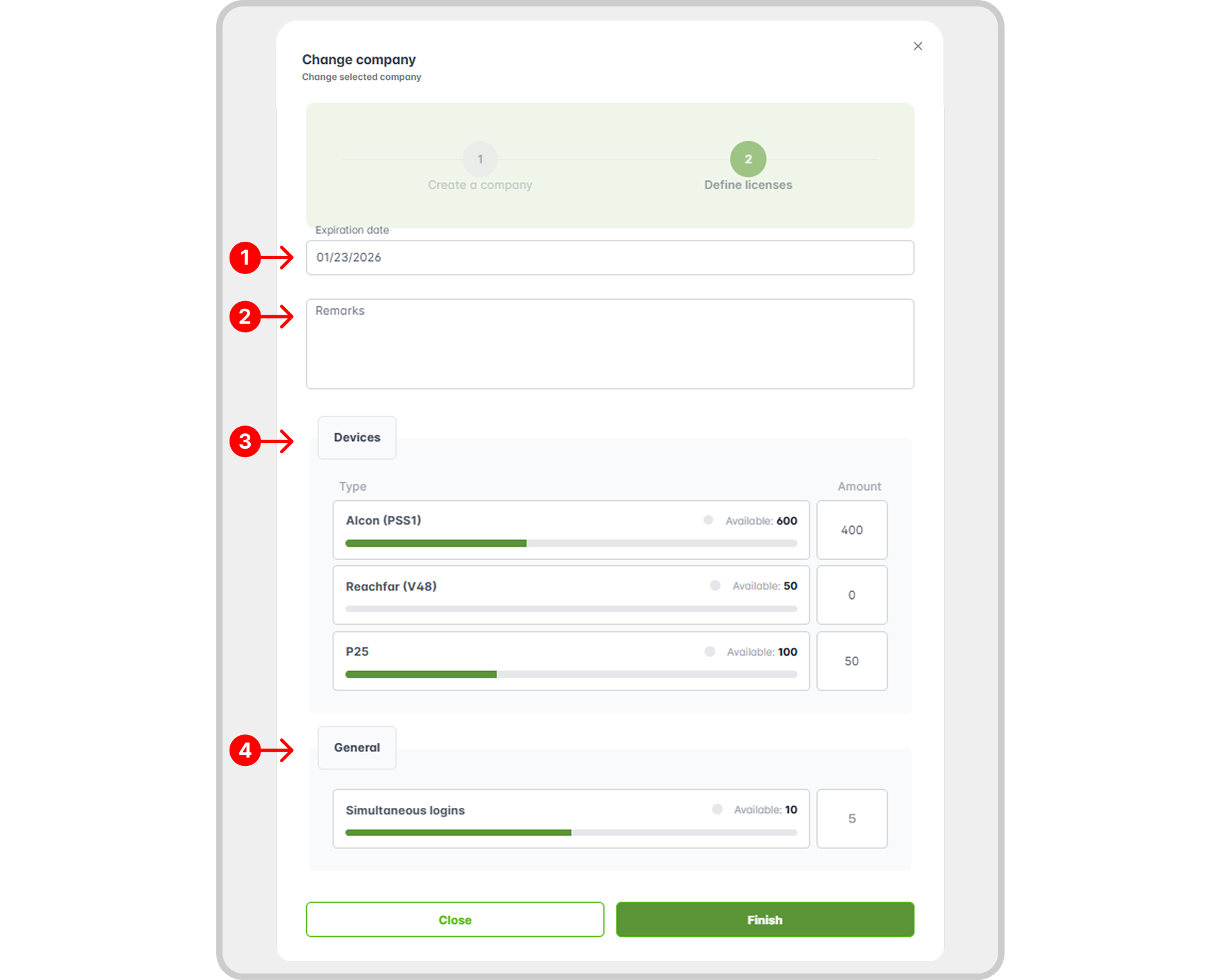
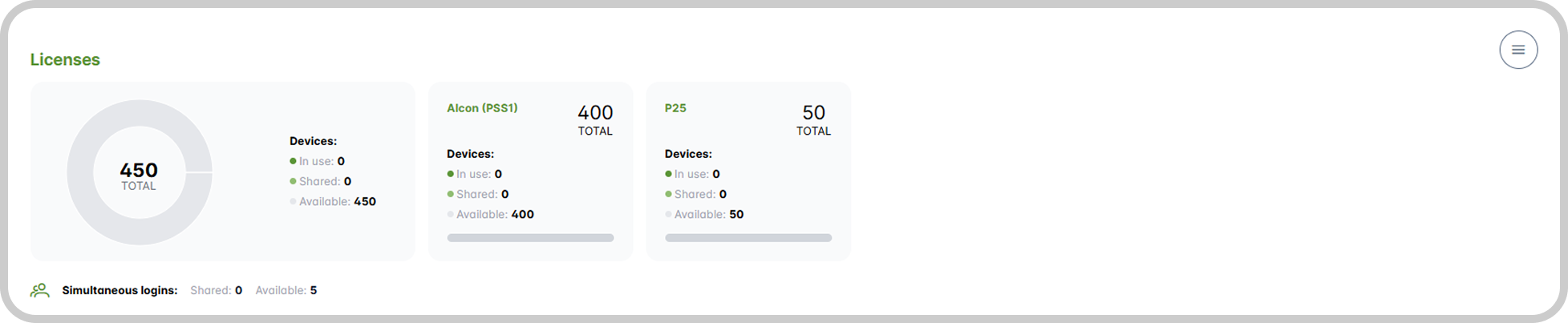
In this example, a subsidiary was created with the following settings:
- No notes;
- 400 PSS1 devices available;
- 50 P25 devices available;
- Up to 5 concurrent logins;
Created subsidiary's license
Concurrent Logins
You can control how many users can access the system simultaneously. If the limit is reached and an additional user attempts to log in, they will be blocked until one of the connected users ends their session.
Edit
License settings for a company can be modified at any time. To do this, access the licensing configuration environment and click the edit icon for the desired company. See more in: Create, Edit, and Delete.
It is not possible to change properties inconsistently (e.g., to values lower than what is currently in use by the company). Rules continue to be applied based on the parent company's license.
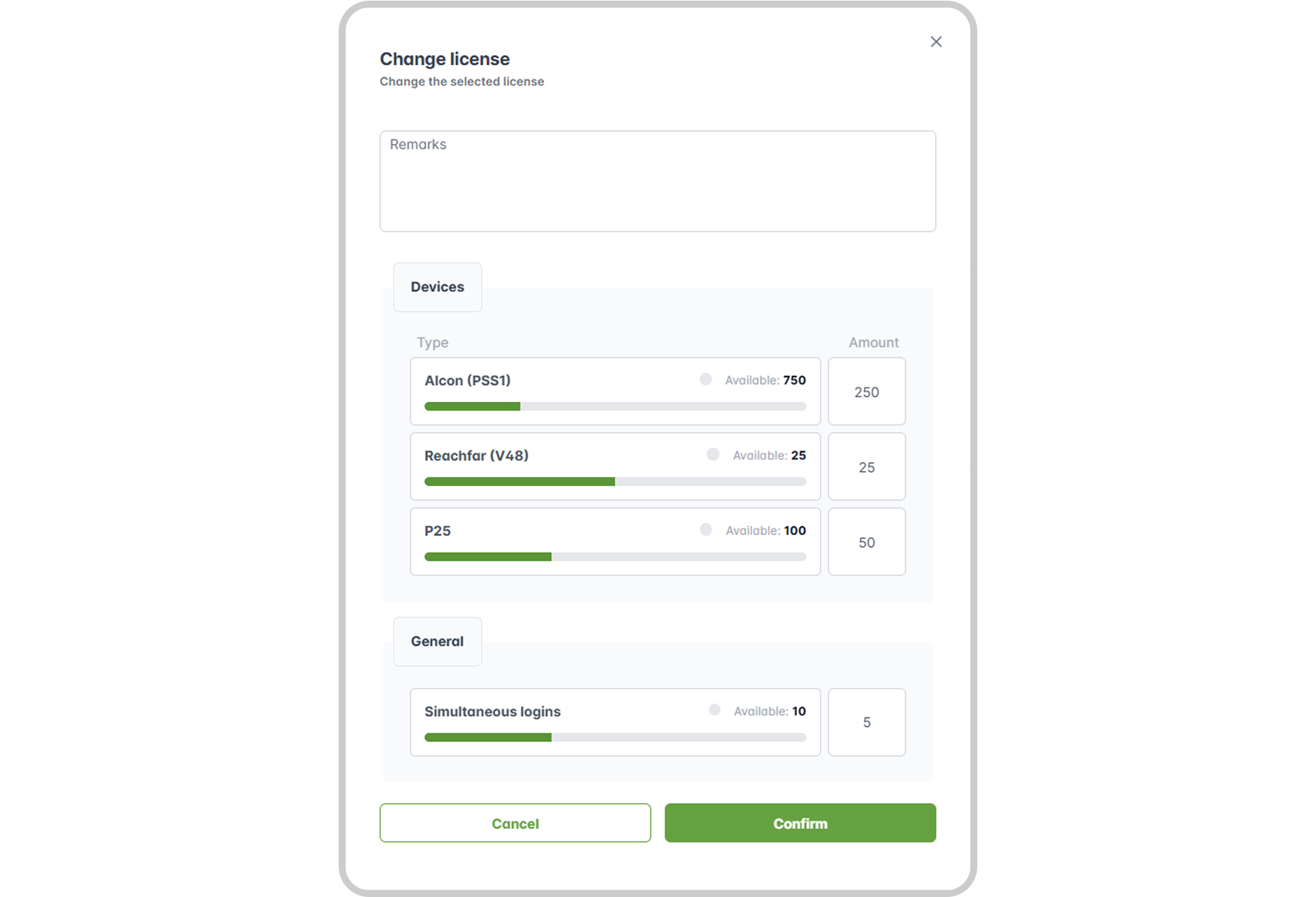
In this example, the parent company modifies the previously created subsidiary's properties to:
- 250 PSS1 devices;
- 25 V48 devices;
- 50 P25 devices;
- Up to 5 concurrent logins;
Results of Changes
Modifying license definitions updates data and settings for both the parent and subsidiary licenses within the configuration environment.
Overview
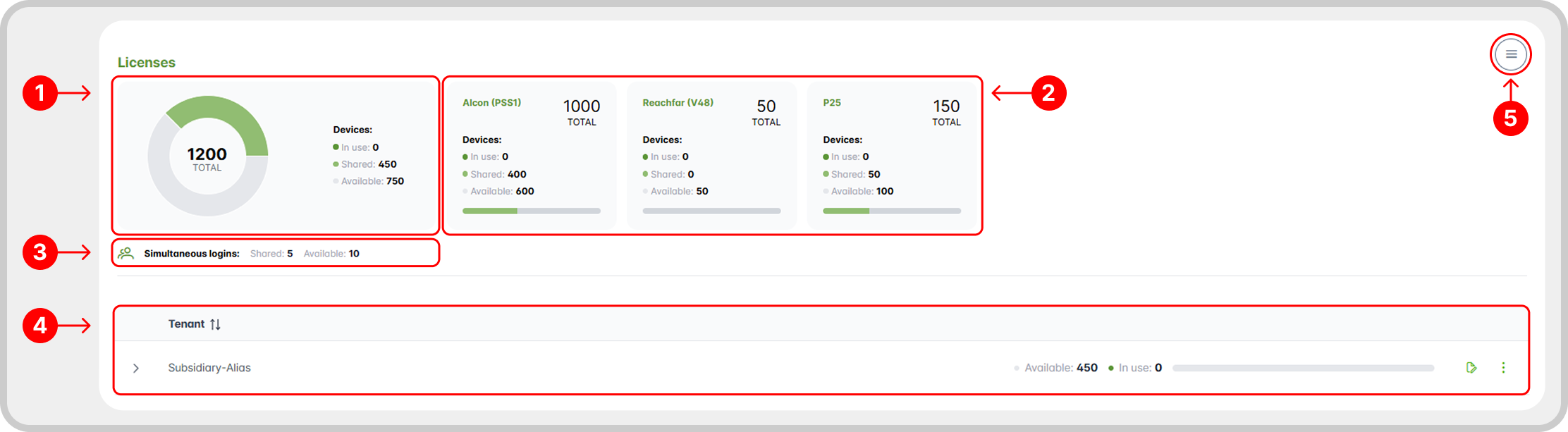
In the licensing configuration environment, you can view:
- A summary of the company's current overall license status;
- A detailed report for each device type the company possesses;
- The number of shared and available concurrent logins;
- Data related to created subsidiary licenses (click the arrow at the beginning of the record to show more details);
- Click the icon to collapse/expand device license reports;
Actions
There are a few actions related to registered licenses:
- Deactivate/Activate: activates or deactivates a company's license. If deactivated, the company will not be able to access the system.
- Registration History: find out how to access the registration history of licenses and their features in Registration History.
- Change expiration date.