Authentication
In the Authentication tab of the General settings context, you manage your company's security layers. Use this section to:
- Access Providers: Configure how users log in.
- Multi-Factor Authentication: Enable two-factor authentication for an extra layer of protection.
- Password Policies: Set complexity and security rules for new passwords.
Multi-Factor Authentication (MFA)
Multi-Factor Authentication is an additional layer of security that uses more than one form of verification to confirm the user's identity. In addition to the traditional password, the system requests a temporary code generated by an authenticator app on the mobile device.
See more configuration details at: Multi-Factor Authentication (MFA).
Identity providers
Identity providers are external services that allow users to log in to the system using their corporate or personal accounts, such as Microsoft or Google. In RemotaSafe, users can connect to the different providers configured in the company according to their permissions, facilitating access and improving security.
- Agility: No need to enter a password.
- Security: Takes advantage of the robust security of providers.
- Convenience: Use credentials you already have and know.
- Data Update: Data synchronized automatically.
See more configuration details at: Identity Providers.
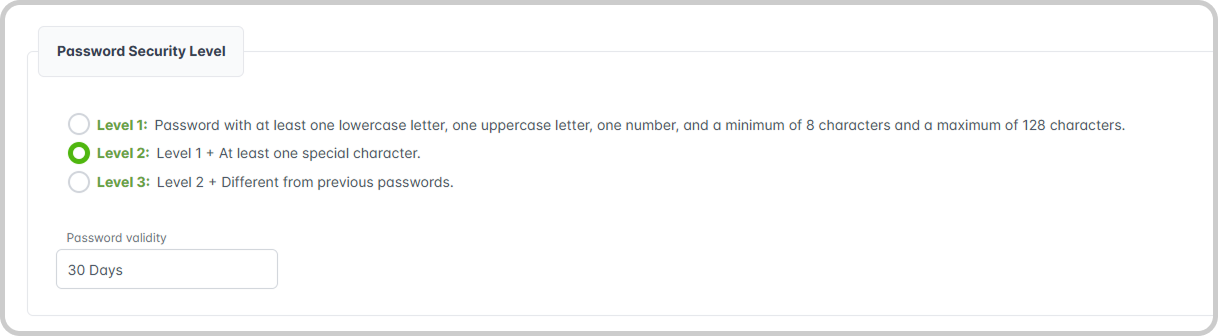
Password Security Level
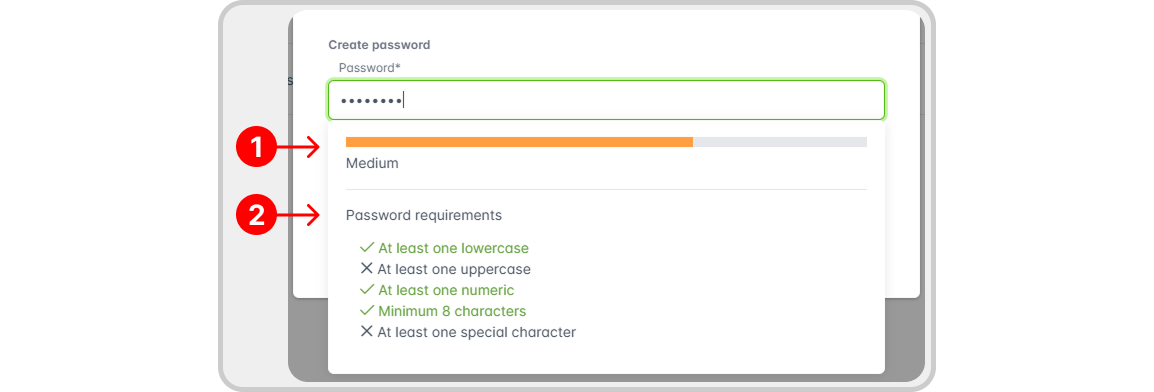
In this section, you define the complexity rules that all system passwords must comply with. Changes to these settings directly impact the creation of new passwords and the update of existing ones. The requirements for each security level are visually displayed to users during password creation.
Password Expiration
Defines the password expiration period (in days). After the specified period, the system will automatically require the user to create a new credential in accordance with the selected security level.
Example
In the example below, the user has defined that passwords must meet Security Level 2 requirements and will expire after 30 days. Once the password expires, the user will be required to set a new password in order to authenticate.
When registering, users can view the strength of their password (1) and the requirements defined in the password security level that it must meet (2), as shown in the image: